What is MCP? Ask your AI assistant about your TikTok data
A plain-language guide to MCP — what it is, why it matters if you use ChatGPT or Claude at work, and how to connect busypipe so you can ask about your TikTok analytics in a chat.
You probably already use an AI assistant at work. You ask ChatGPT or Claude to tidy up an email, summarize a document or draft a caption. But ask it “How did our TikTok do this week?” and it can’t help, because it has no way to see your numbers.
MCP fixes that. This guide explains what MCP is without the jargon, what it lets you do with your TikTok analytics, and how to set it up in about two minutes.
MCP in one sentence
MCP lets your AI assistant look things up in the apps you use, with your permission.
The name stands for Model Context Protocol. You don’t need to remember that. Think of it as a universal plug. Before USB, every device needed its own cable. Before MCP, every AI assistant needed its own custom connection to every app, so most apps had none. MCP is one standard plug that works with any assistant that supports it, including ChatGPT and Claude.
When an app like busypipe offers an MCP connection, you plug it into your assistant once. After that, the assistant can fetch answers from busypipe while you chat.
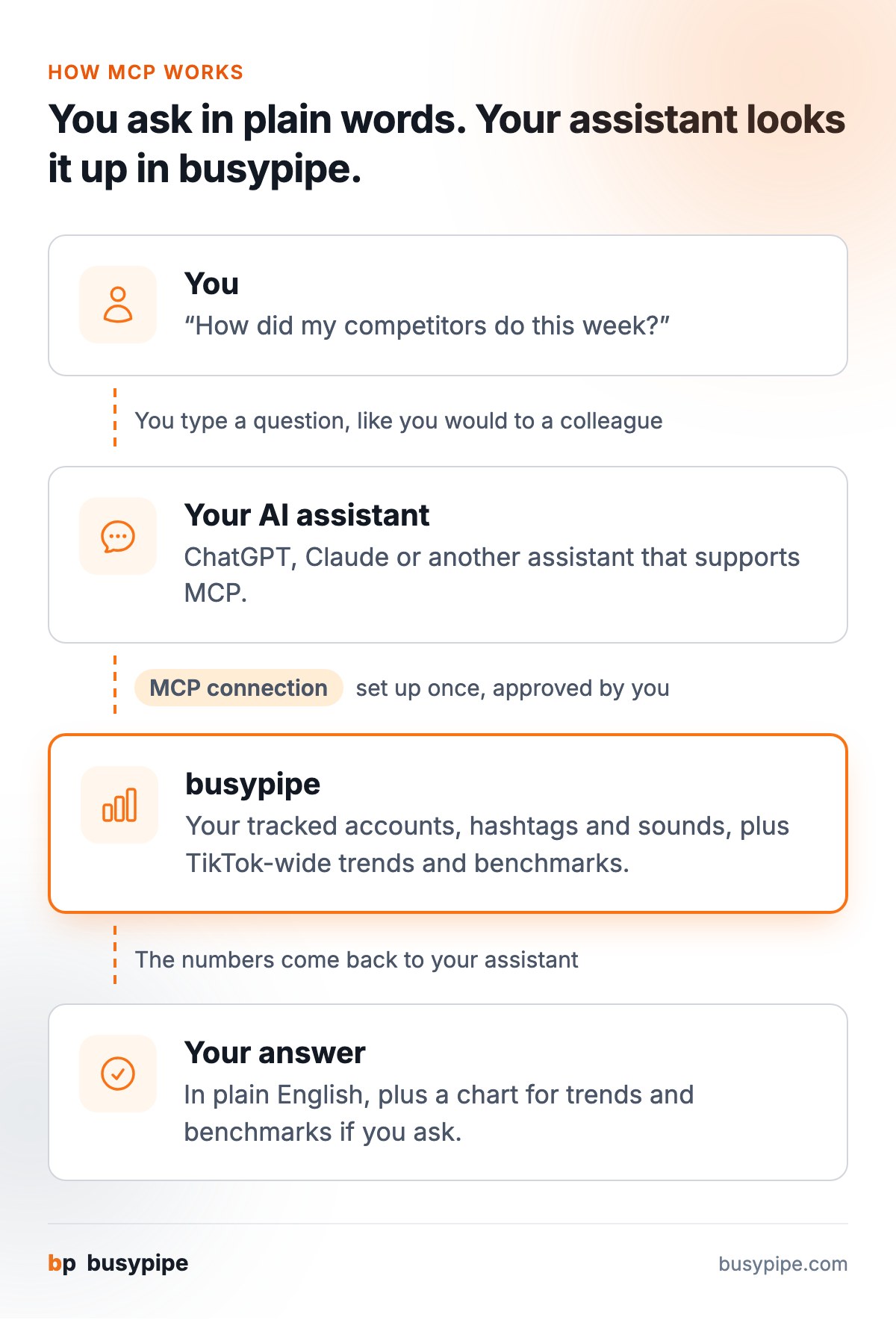
What it looks like in practice
Say you track your brand account and five competitors in busypipe. Without MCP, finding out how the week went means opening the dashboard, clicking through a few pages and copying numbers into a message for your manager.
With MCP, you type this into your assistant:
How did my competitor portfolio do this week? Who grew the most, and how does our engagement compare?
The assistant asks busypipe, gets the numbers and answers in plain English. The figures come from the same analytics you see in the app, so they match your dashboard. For a slide, ask for a chart of an account’s, hashtag’s or sound’s trend, or of TikTok-wide engagement benchmarks. busypipe sends back a ready-made chart image you can paste into a report.
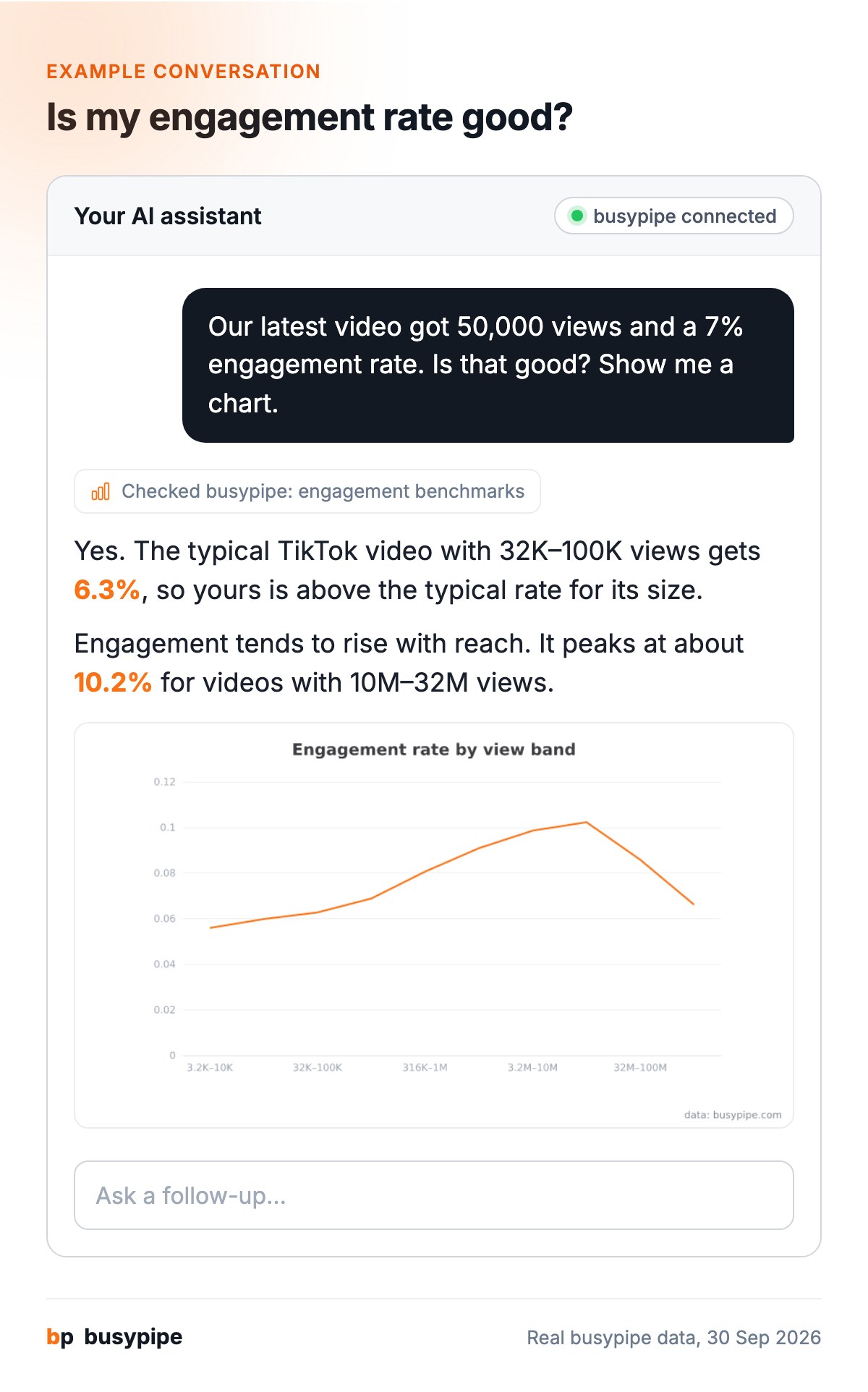
Here is a real example. The question is about engagement rate, and the numbers and chart are what busypipe returned on 30 September 2026:
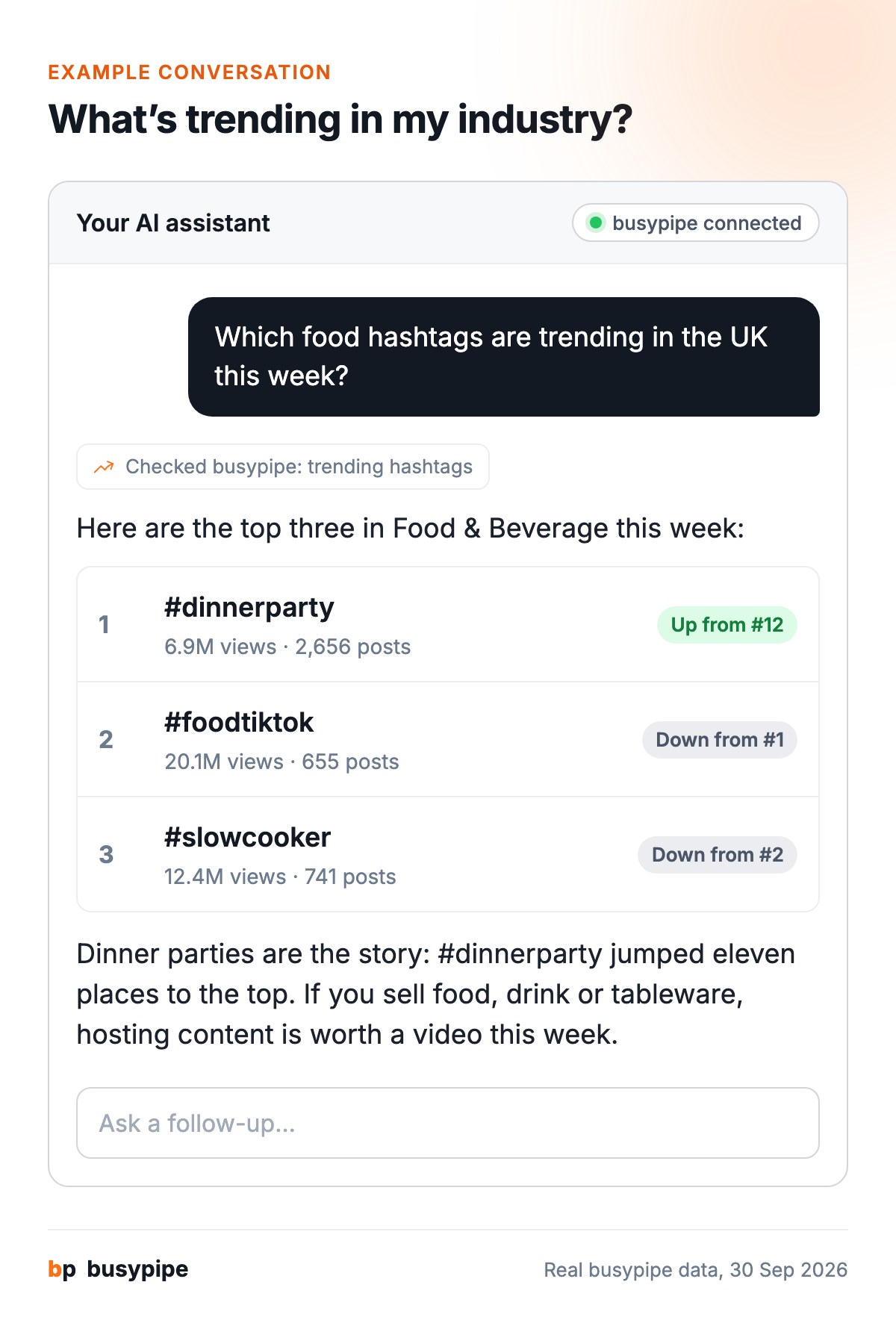
It works just as well for spotting trends. You don’t need to track anything first:
A few more questions people ask, about TikTok as a whole:
- “Is our engagement rate good for our size, compared with TikTok overall?”
- “Which hashtags are trending in food and drink this week?”
- “What videos are taking off in the UK right now?”
- “Find TikTok accounts about sourdough baking and start tracking the top one.”
And about the accounts, hashtags and sounds you track:
- “Which hashtags usually appear together with #homecoffee?”
- “Is this sound still growing, or has it peaked?”
The sourdough question shows that your assistant can also act for you. It can find new accounts, hashtags and sounds and add them to a portfolio, so you don’t have to leave the chat.
Why this is useful
You ask the way you’d ask a colleague. You don’t need to know which page holds which number or how filters work. You describe what you want, and the assistant finds it.
It does the tidying for you. Your assistant can take the numbers and turn them into a weekly summary, a list of talking points for a meeting or a short update for a client. That’s usually the slow part of reporting.
You don’t switch between apps. If you already spend your day in ChatGPT or Claude, your TikTok data is there too.
It shows its working. You can ask “how is this number calculated?” and get a straight answer about what the figure means and what it leaves out.
Is it safe?
Handing your data to an AI sounds worrying, so here is what actually happens.
- You decide. Nothing connects until you add busypipe to your assistant and sign in with your busypipe account. You approve the connection yourself.
- It sees what you track. Answers about specific accounts, hashtags and sounds come from what’s tracked in your workspace. Wider benchmarks and trend lists are labelled as such.
- It works with summaries. The connection returns trends, rankings and comparisons, not bulk exports of raw posts.
- Team roles still apply. Workspace members with view-only access can’t connect an assistant. Owners, admins and analysts can.
One tip: only connect using the address shown on your busypipe Settings → Integrations page, and check that the approval screen names the assistant you’re connecting before you accept.
How to connect busypipe
It takes about two minutes:
- In busypipe, go to Settings → Integrations and copy your server address.
- In ChatGPT or Claude, open settings and look for the option to add a custom connector. Some apps call it a “remote MCP server”.
- Paste in the address.
- Sign in with your busypipe account when asked.
That’s it. Start a new chat and ask about your portfolio. If you belong to several workspaces, tell the assistant which one to use.
The AI assistants guide in our Knowledge Base has the details, including daily limits and the ready-made prompts you can use.
Three prompts to try first
If you’re not sure where to start, copy one of these:
- Weekly check-in: “Give me a short summary of my main portfolio this week: who gained or lost followers, any big engagement changes, and what content themes are dominating.”
- Competitor snapshot: “Rank my account against my competitors by engagement rate, and tell me whether our rate is above or below the TikTok average.”
- Trend scouting: “Which hashtags are trending in food and drink this week?”
Who can use it
The AI assistant connection is part of the Professional plan and above. Each workspace has a daily request limit that resets at midnight UTC, and it’s high enough for everyday reporting. See Plans & Billing for the details.
New to busypipe? Every new account starts with a 14-day Professional trial, and the AI assistant connection is included. Start your free trial, set up your first portfolio and connect your assistant on day one. You can compare plans when the trial ends.
Spot rising sounds before they peak
busypipe tracks trending sounds, creators, and hashtags on TikTok. Every account starts with a 14-day Professional trial — no card required.
Start for freeGet the weekly TikTok trends digest
Rising hashtags, sounds, and creators — straight to your inbox.
Keep reading
-
TikTok hashtag analytics: a practical guide
What TikTok hashtag analytics actually tells you, which metrics matter, and how to use co-occurrence and regional data to pick hashtags that extend reach instead of guessing.
-
TikTok market research for solopreneurs: a 30-minute weekly routine
You sell a product on your own and have no research budget. Here is how to use TikTok as a free customer panel, with one weekly routine for trends, competitors and what buyers actually ask.
-
How to spot a TikTok trend before it peaks
We followed 95 hashtag surges day by day. Five days out, the typical one was at 6% of its peak. The day after, it had lost almost two-thirds.